Getting started with Git & Github
In this article, we are going to learn how to push and maintain your projects on Github.

Hey !! I am an undergrad, pursuing B.Tech in Inforation Technology. Here to share my learning and start my blogging journey.
Step 1 : Log into your github account and then click on the ' + ' icon on the top-right corner. Then click on New Repository from the drop down menu.

Step 2 : Now write the name of repository and select the Add Readme File Option. Finally, click the Create Repository button and your repository is created.

Step 3 : Now click on Code and copy the link.
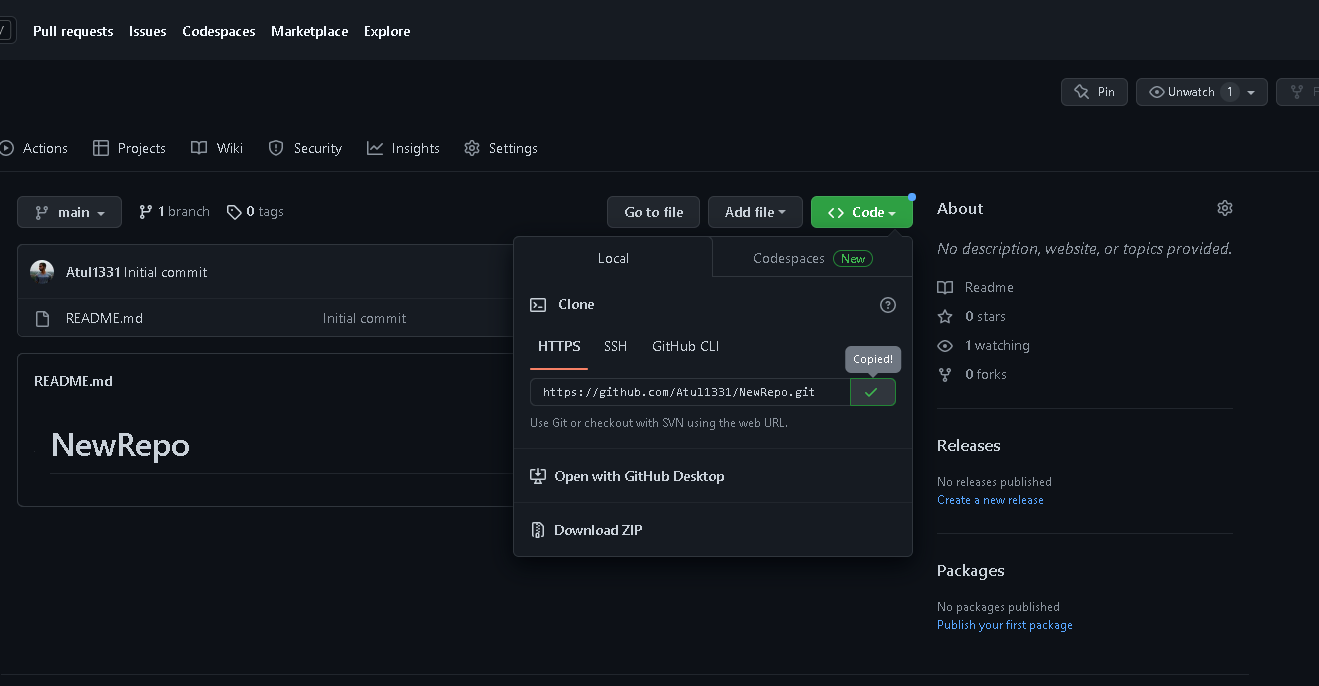
Step 4 : Now we will be cloning this repository into our local machine. You can open any command terminal. After opening the terminal, move to the folder where you want to keep this project. ( I am keeping my project on desktop ). Then write the following command :
git clone <linkyoucopied>

Press enter and a new folder with the name of your repository will be created onto your local machine.
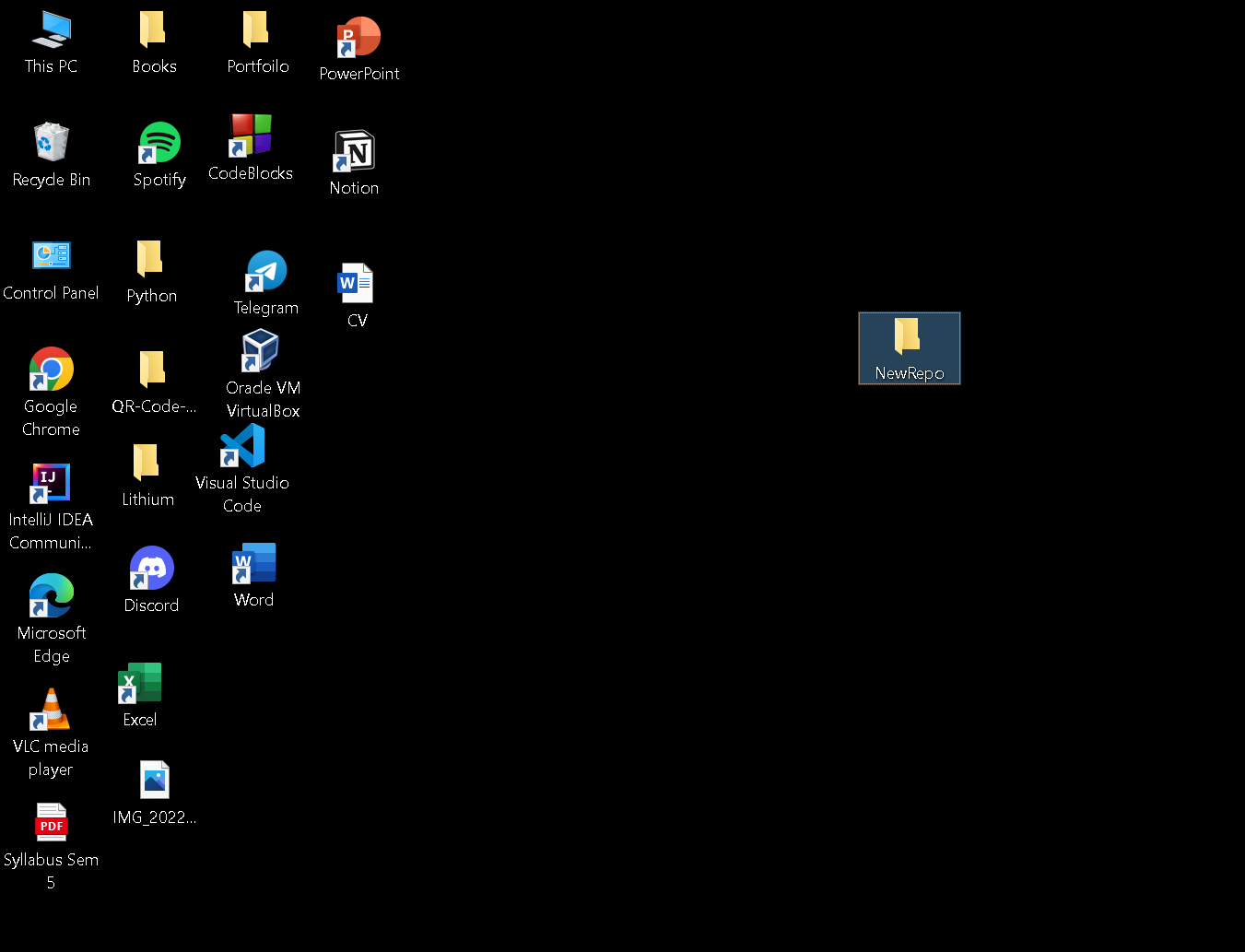
The folder is created on my desktop.
Step 5 : You can now make any changes you want in that folder. I have added a text file into my folder. Now its time to push these changes onto our github repo.
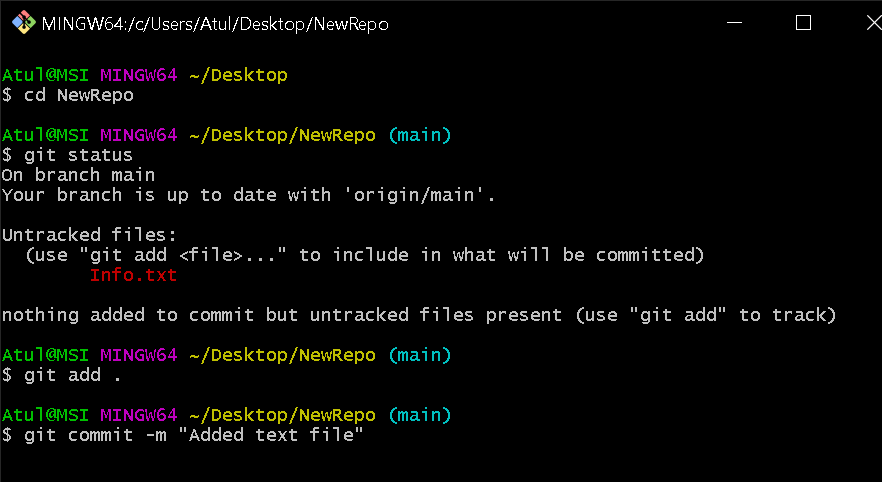
Step 6 : Again open the terminal and move to the folder you are working in using cd <foldername> command.
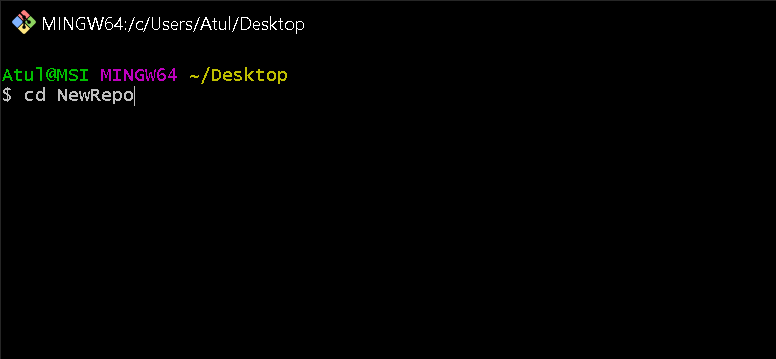
Now we need to push our changes from our local machine to our github repo.
Step 7 : Type command git status and press enter . It shows all the tracked and untracked files in your project.

Here it shows the Info.txt file in red. It means it is not being tracked by git currently and our repository knows nothing about this file we created on our local machine.
Step 8 : Now type git add . to add all the unsaved changes. This tells git that we have some changes in our local machine that we would like to commit to our repository.
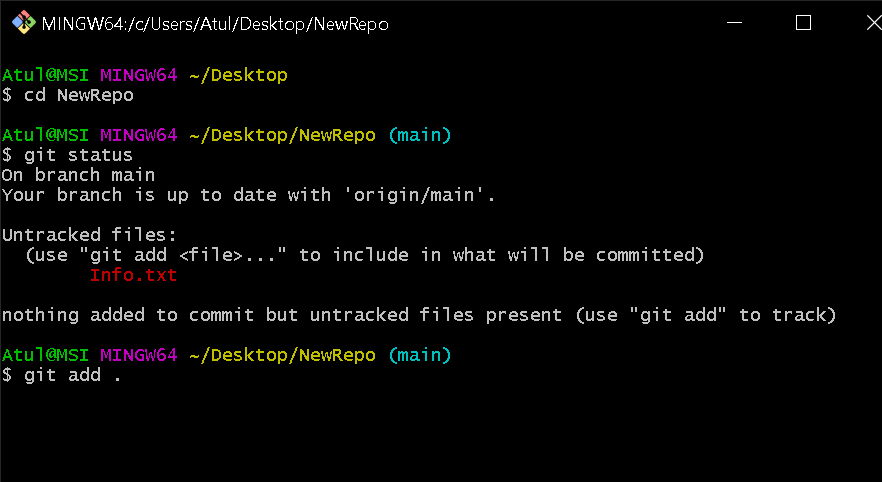
Now if you type again the git status command, you will see that all the files that were red in color earlier now shows in green color. It means we have succesfully saved our files and that they are being tracked by git now.
Step 9 : Now type git commit -m "Message you want to commit". The commit command lets you to save the changes in your local repository. These changes will still not be reflected into your github repository. There is still one step left to finally update your github repo to your local folder.
Step 10 : Finally, type git push origin main/master. This pushes all the changes from your local repository into your github repository. Now your local folder and github repository are same to same.

Go to github and refresh your page. You can see all the new files from your local machine present in your github repo.